
Users & sign-in
Single-user mode without a password, or accounts with passwords for several people – how signing in works, how to switch and how your data is protected.
Single-user mode (default)
There is nothing to set up at the first start: the app starts in single-user mode and signs you in automatically. For this it creates a random app password and keeps it in Windows Credential Manager, protected by your Windows sign-in. You never see it and never have to remember it.
- The account is called
default, is an administrator and takes language and theme from the installer. - There is no password to change in the profile, so the profile button in the sidebar is hidden.
- If Windows Credential Manager is not available, the app asks for an account with a password at the first start instead.
Creating an account with a password
- Sidebar → User management (people icon).
- In the Application login mode card, enter a user name (at least 3 characters) and a password (at least 8 characters), and repeat the password.
- Click Create account.
Your connections and settings are kept. From the next start on you sign in with the new name and password; the entry in Credential Manager is removed.
The login screen
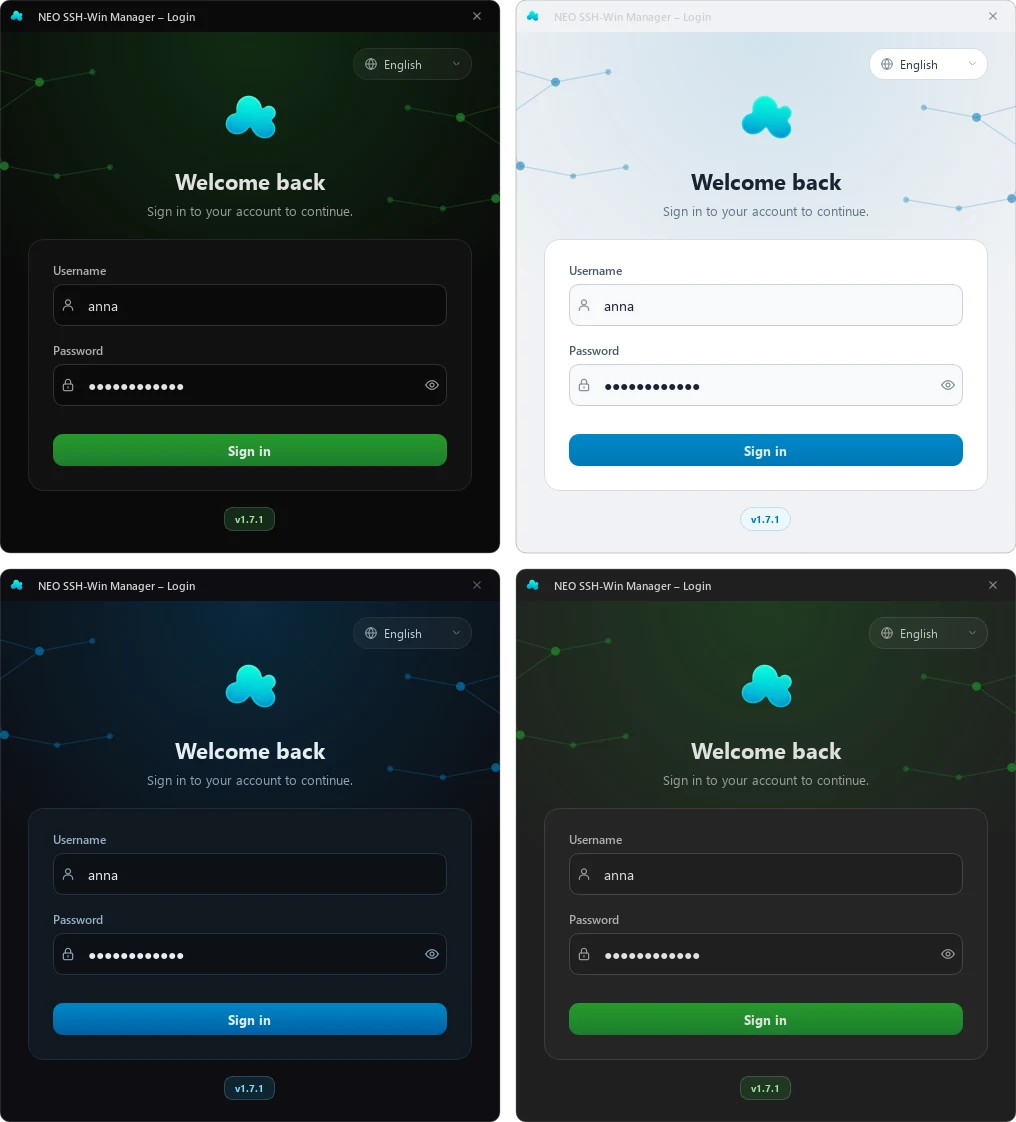
- Language: the menu at the top right switches the login screen at once; after signing in, the language you picked becomes your language in the app.
- The eye in the password field shows the password; a hint appears while Caps Lock is on.
- Theme, accent colour, text colour and language are those of the person who signed in last.
- After several wrong passwords the account is locked for a while – first 30 seconds, longer after further failed attempts (up to 7 days). Restarting the app does not lift the lock.
User management
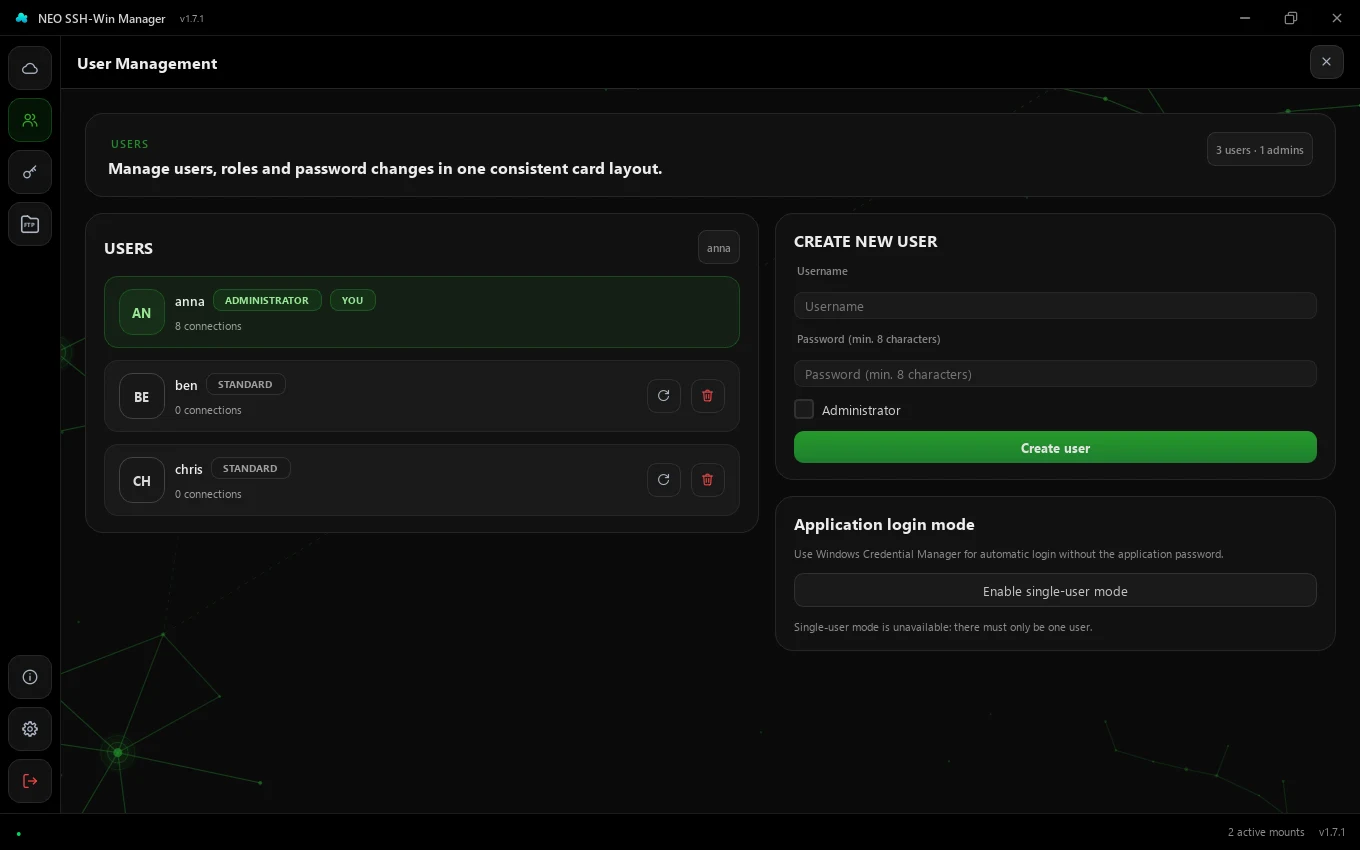
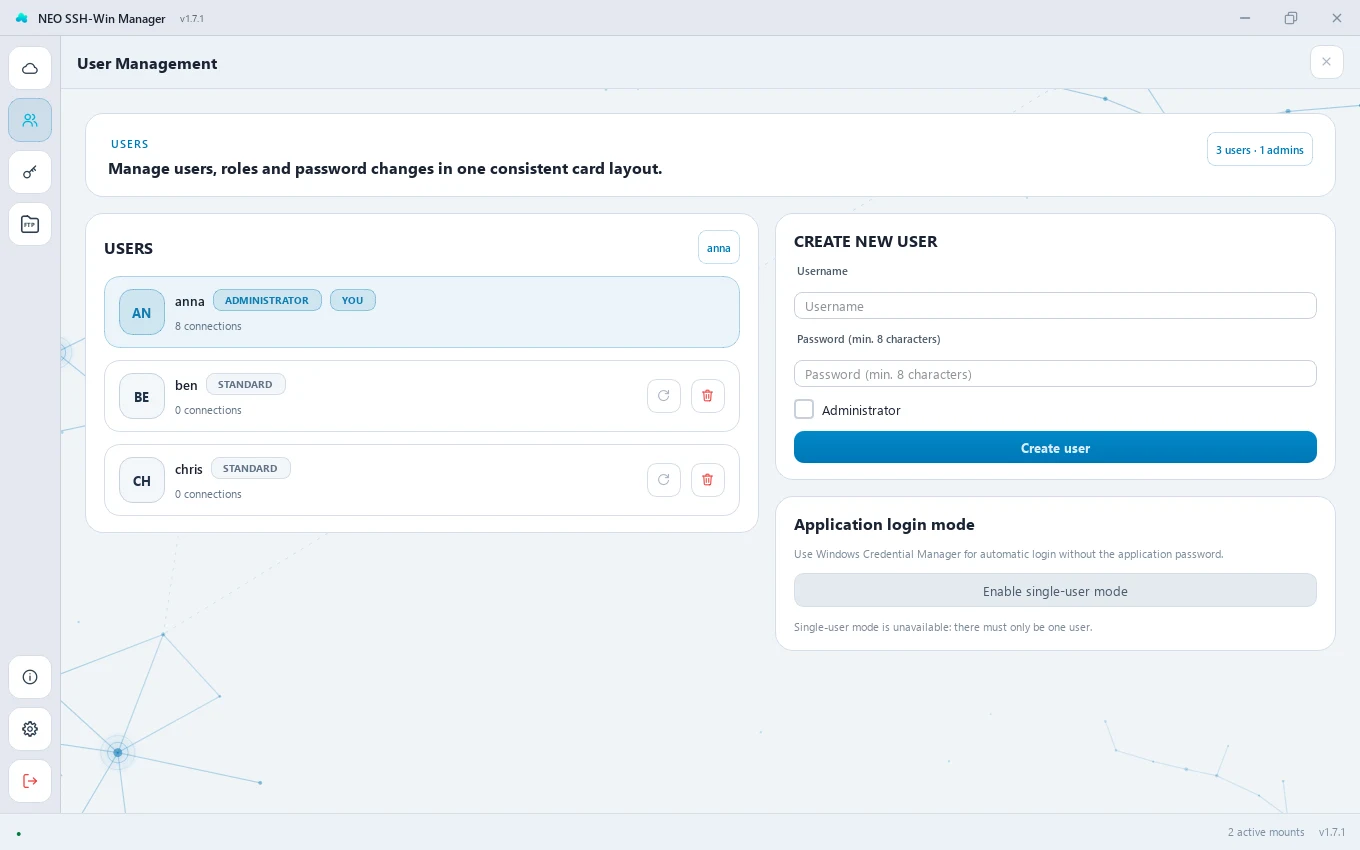
Administrators see every account with its role and number of connections. Every account has connections and settings of its own that the others cannot see.
- Create new user: name, password and optionally Administrator.
- Reset password (circular arrow): generates a new password and shows it once. That user's stored SSH passwords are lost; connections with keys keep working.
- Delete (trash can): removes the user with all their connections.
Back to single-user mode
With just one account, the Application login mode card offers Enable single-user mode. After a confirmation the app signs you in automatically again from the next start; your account is then called default, and connections and settings are kept.
Profile
The profile (key icon) shows your user name and role. Under Change password you enter the current password and the new one twice (at least 8 characters). Your stored SSH passwords are kept.
Logging out and quitting
The button at the very bottom of the sidebar asks what to do:
- Stay logged in – do nothing.
- Quit only – the app closes, the drives stay mounted.
- Logout & unmount all hosts – every drive is unmounted, then the app closes.
How your data is protected
- Connections, settings and accounts live in a local SQLite database:
%APPDATA%\SSHWinManager\data.db. - Every account has a random key of its own. SSH passwords and connection data are encrypted with it using AES-256-GCM.
- That key is itself encrypted – with a key derived from your account password (in single-user mode from the password in Credential Manager). Decrypted, it only lives in memory while you are signed in.
- Even the text in the connection filter is stored encrypted, because it may contain host names.