
Creating connections
Every field of the connection form explained – with tips on what goes in and where to find the values. The “?” buttons in the app's form jump straight to the matching place on this page.
The connection form
Create a new connection with + above the connection list (or Ctrl+N). The form opens to the right of the list. To edit an existing connection, click the pencil on its card (or Ctrl+E).
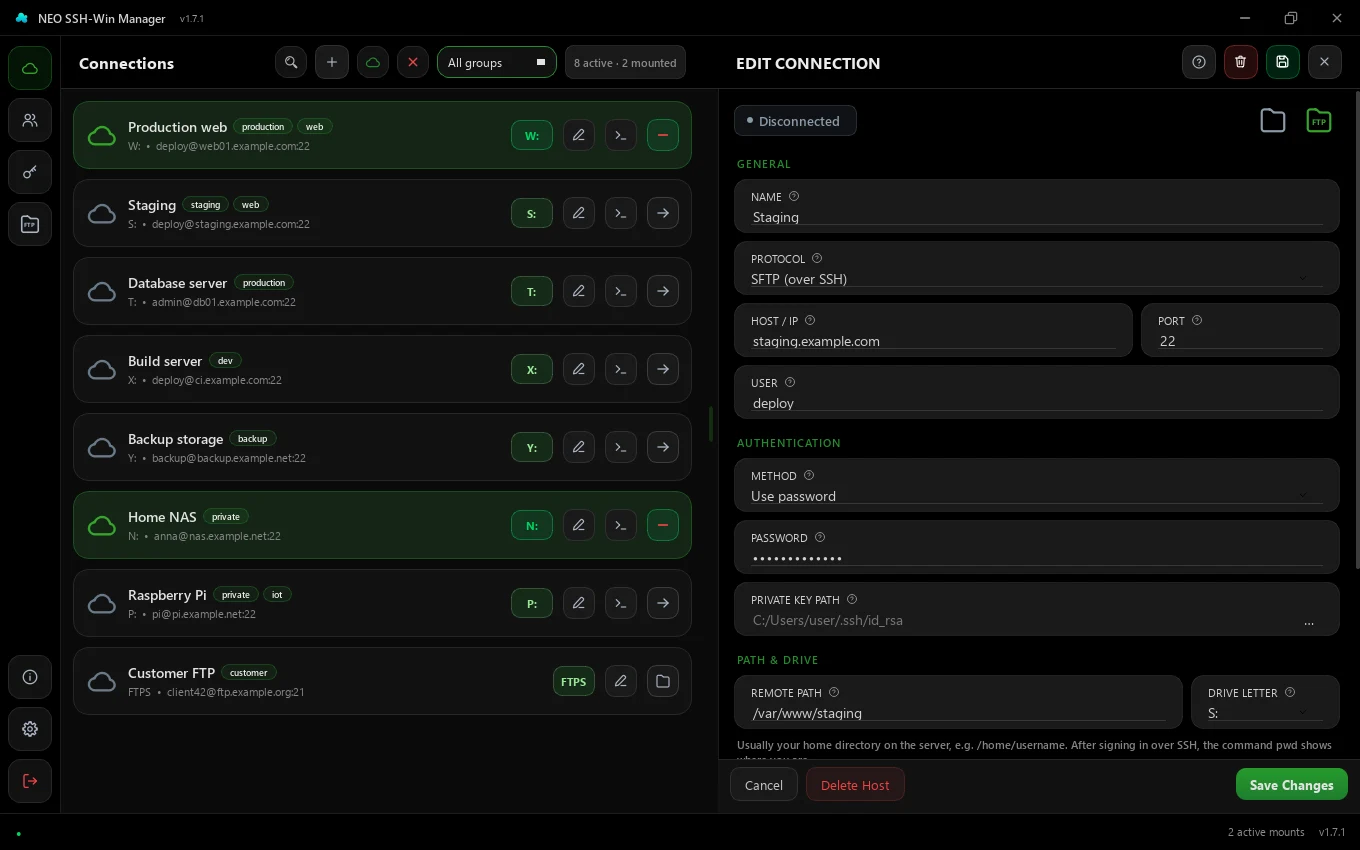
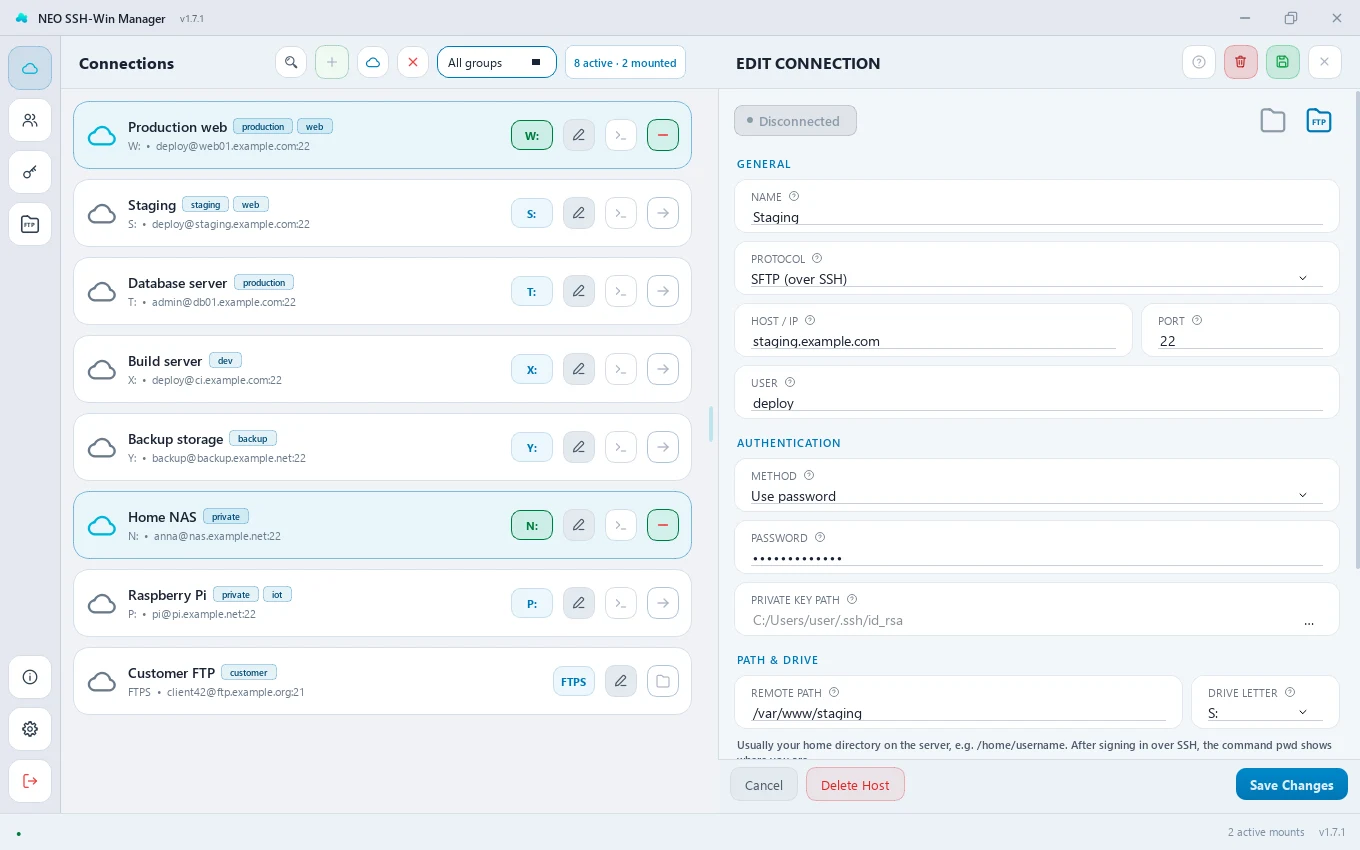
Only Name, Host and User are required; everything else has sensible defaults. Save with Save or Save changes (Ctrl+S), discard with Esc. If you leave a changed form, the app asks first.
Template
Only shown when creating a connection, and only once templates exist. Pick a template and the form takes all its values; the drive letter is adjusted to a free one automatically. The trash icon in the list deletes a template.
Name
A display name of your choice, e.g. Production web. It appears in the connection list and as the drive's label in Windows Explorer. Letters, digits, spaces and -, _ and . are allowed; every name may be used only once.
Protocol
| Protocol | Default port | What for |
|---|---|---|
| SFTP (über SSH) | 22 | The usual case. Can be mounted as a drive and has the terminal, system info and file browser. |
| FTPS (FTP über TLS) | 21 / 990 | Encrypted FTP, e.g. at web hosts without SSH. File browser only. |
| FTP (unverschlüsselt) | 21 | Old FTP without encryption. Use it only if the server offers nothing else. |
For FTP and FTPS the form hides everything SSH needs: key, drive letter, CLI access and PuTTY. Such connections open the built-in file browser instead of a drive; plain FTP can also be opened in Windows Explorer (right-click the card).
Host / IP
The server's address – a host name like server.example.com or an IP address like 192.168.1.20. Enter the address only: no ssh://, no user@ and no port.
raspberrypi.local often work too.Port
Almost always 22 for SFTP. Some providers use another port (e.g. 2222) – their SSH guide then says so. FTPS uses 21 (explicit TLS) or 990 (implicit TLS), FTP 21.
User
The user name on the server, not your Windows name and usually not an e-mail address – e.g. deploy, pi or root. At web hosts it is often called “SSH user” or “SFTP user” and looks like u12345678 or web42.
Method (authentication)
- Use password – you enter the password once; the app uses it for the drive, terminal, system info and file browser.
- Use private key – sign in with an SSH key (more secure, no password needed).
- Ask each time – nothing is stored; when connecting you choose password or key.
More on this, including SSH certificates, on the Authentication page.
Password
The SSH or FTP password. It is stored encrypted in the local database, with a key tied to your app account (see How your data is protected). The field only matters with the method “Use password”.
Private key path
Path to your private OpenSSH key, e.g. C:\Users\you\.ssh\id_ed25519. Pick the file with “…”. It is the file without .pub; the public part belongs on the server in ~/.ssh/authorized_keys.
ssh-keygen -t ed25519 creates one. Append the contents of id_ed25519.pub to ~/.ssh/authorized_keys on the server.FTP options
- Implicit TLS (port 990) – FTPS only. Off means explicit TLS (AUTH TLS) on port 21, the usual setting.
- Verify server certificate – FTPS only, on by default. Turn it off only for self-signed certificates: the connection stays encrypted, but the server's identity is no longer verified.
- Passive mode – on by default and the right choice behind most firewalls and routers. Turn it off only if the server requires active mode.
Remote path
The folder on the server that is mounted as the drive and where the file browser starts. Usually it is your home directory, e.g. /home/deploy. The default is /, the whole server – that works, but shows a lot you don't need and often may not even read.
How to find the right path is explained in detail under Finding the remote path.
Drive letter
The letter under which the server appears in Windows Explorer, e.g. W:. The list only offers letters that are free and not used by another host; for a new connection the first free one is preselected. FTP/FTPS has no drive and therefore no field.
To let several hosts share a letter (only one of them is mounted at a time), allow it in the settings under Allow the same drive letter for several hosts.
CLI access
With Enable CLI access for agents, the CLI companion (NeoSSHWinManager-cli.exe) may use this connection – for scripts and automation. The app generates a 128-character access key for it, which you can copy or regenerate. The CLI history in the connection's details shows what ran through the CLI. More on the CLI companion page.
PuTTY key (.ppk)
Only shown when PuTTY is chosen as the terminal in the settings. PuTTY needs keys in its own .ppk format; convert OpenSSH keys with PuTTYgen (“Load” → “Save private key”). The path is used for the PuTTY terminal and the system info; the drive keeps using the OpenSSH key.
Groups / tags
Comma-separated keywords like web, production. They appear as small labels on the card. The group filter above the list shows just one group – and Mount all then mounts only that group's connections.
Save as template
When creating, Save as template turns the form into a template instead of a connection; templates are not in the list but only in the Template picker. When editing, the option is called Also save as template: saving then creates a copy as a template – without password and keys – and leaves the host itself unchanged.
Finding the remote path
In nearly all cases the right path is your home directory – the folder you land in after signing in. Three ways to find it:
- With the app itself: leave the path at
/and save. Open the connection in the file browser – it then starts in your home directory automatically, and the path bar at the top shows exactly the path to enter. - In the terminal: open the connection's terminal (or
ssh user@hostin PowerShell) and typepwdright after signing in. Alternatively,echo $HOMEshows the home path. - At the provider: web hosts show the path in the customer area, often as “home directory”, “path” or “document root”.
Typical paths
| Server / situation | Typical path |
|---|---|
| Linux user (Ubuntu, Debian, …) | /home/<benutzer> |
| User root | /root |
| Raspberry Pi | /home/pi |
| Web server (nginx/Apache) | /var/www, /var/www/html |
| Hosting with cPanel | /home/<konto>, Website in public_html |
| Hosting with Plesk | /var/www/vhosts/<domain>, Website in httpdocs |
| macOS | /Users/<benutzer> |
| Windows server with OpenSSH | your user folder or a folder such as C:\Projects |
/var/www/my-site. Several folders of the same server can be separate connections with letters of their own.Mounting and unmounting
On the right of every SFTP card sits the connect button (arrow). One click mounts the server under its letter: the card turns the status colour, the button becomes a minus, and the drive appears in Explorer. Clicking the letter opens it there. Clicking the minus unmounts the drive again.
- If the letter is taken right now, the app offers a free one (or picks one automatically, see settings).
- Mount all and Dismount all above the list act on all connections or on the group currently filtered.
- At the next start the app can mount the drives that were connected last time by itself – see Auto-connect on start.
Editing mounted hosts
While a host is mounted, its connection details, path and drive letter are locked – the running drive depends on them. Name, CLI access, groups and template can still be changed. To change the locked fields, unmount the host first.
FTP and FTPS connections
FTP/FTPS cards show a protocol label and a folder button instead of drive and terminal; the folder opens the built-in file browser. Plain FTP can also be opened in Windows Explorer (ftp://) from the context menu; Explorer cannot do TLS, so FTPS always uses the file browser. Background: FTP/FTPS client.
Tips
- Several connections to the same server are fine – say for different folders, each with a letter of its own.
- The magnifier above the list (Ctrl+F) finds connections by name, host or user – see Filtering connections.
- If mounting fails, the Troubleshooting page helps.