
The interface
A tour of the main window: connection list, filter, details, terminal, file browser, system info and the notification area – and the four themes.
The main window
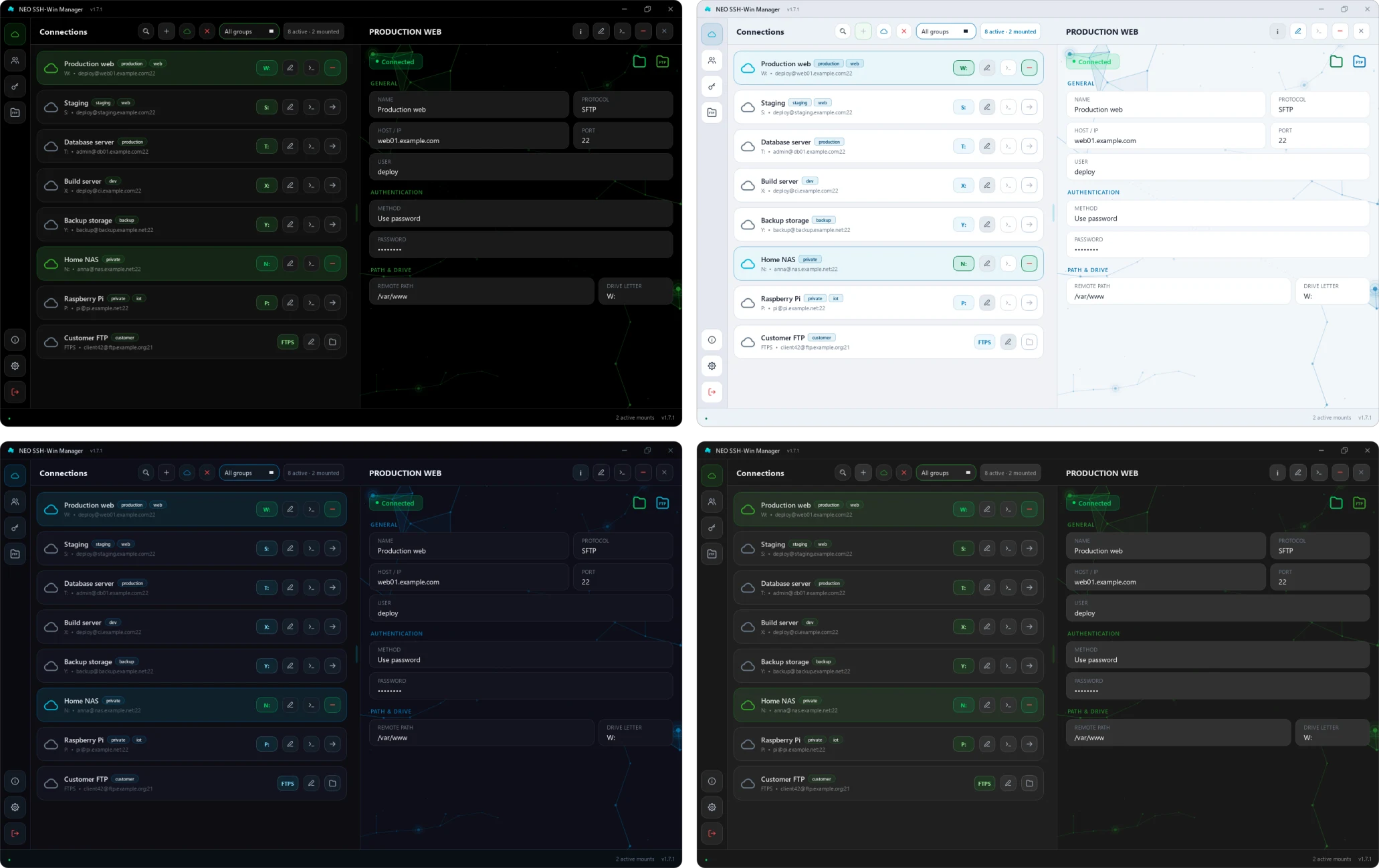
The window has three areas: the sidebar on the far left, the connection list in the middle and, on the right, an area for details, terminal, system info and the connection form. Drag the divider between the list and the right area to resize them. With nothing open on the right, it shows an overview with a network of linked nodes in the background.
Sidebar
| Icon | Function |
|---|---|
| Cloud | Connections – back to the list. |
| People | User management (administrators only). |
| Key | Profile with password change. Hidden in single-user mode, where there is no password. |
| Folder “FTP” | File browser. |
| i (bottom) | About the app: version, links, licences. |
| Gear | Settings. |
| Arrow out of a door | Log out or quit. |
Toolbar above the list
- Magnifier – opens the filter (Ctrl+F). While a filter is set, the magnifier is highlighted.
- + – new connection (Ctrl+N), see connection form.
- Cloud – mount every connection of the current selection; X – unmount them all.
- Group filter – “All groups”, “Only mounted”, “Unmounted” or one of your groups.
- Counter – how many connections there are and how many are connected right now.
Filtering connections
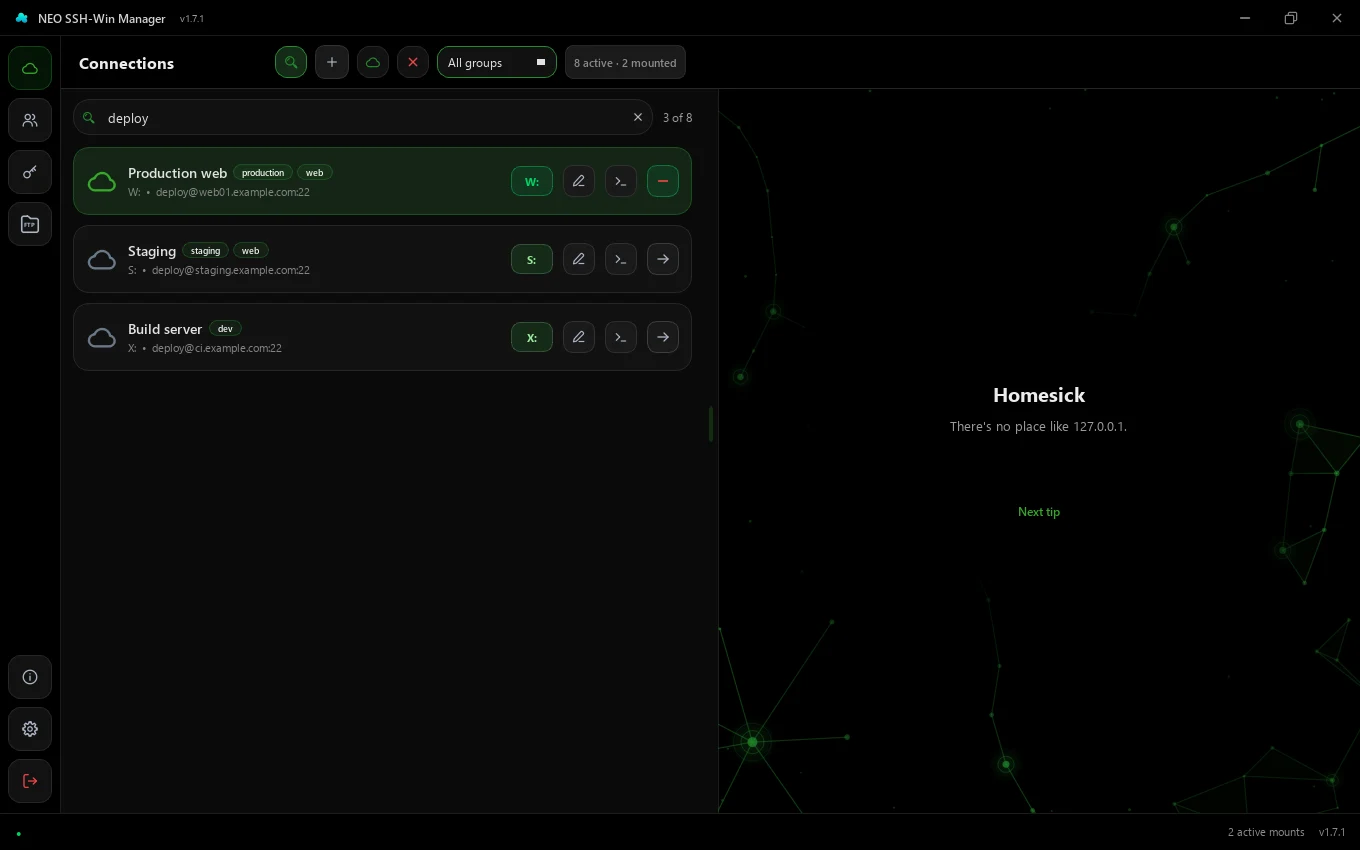
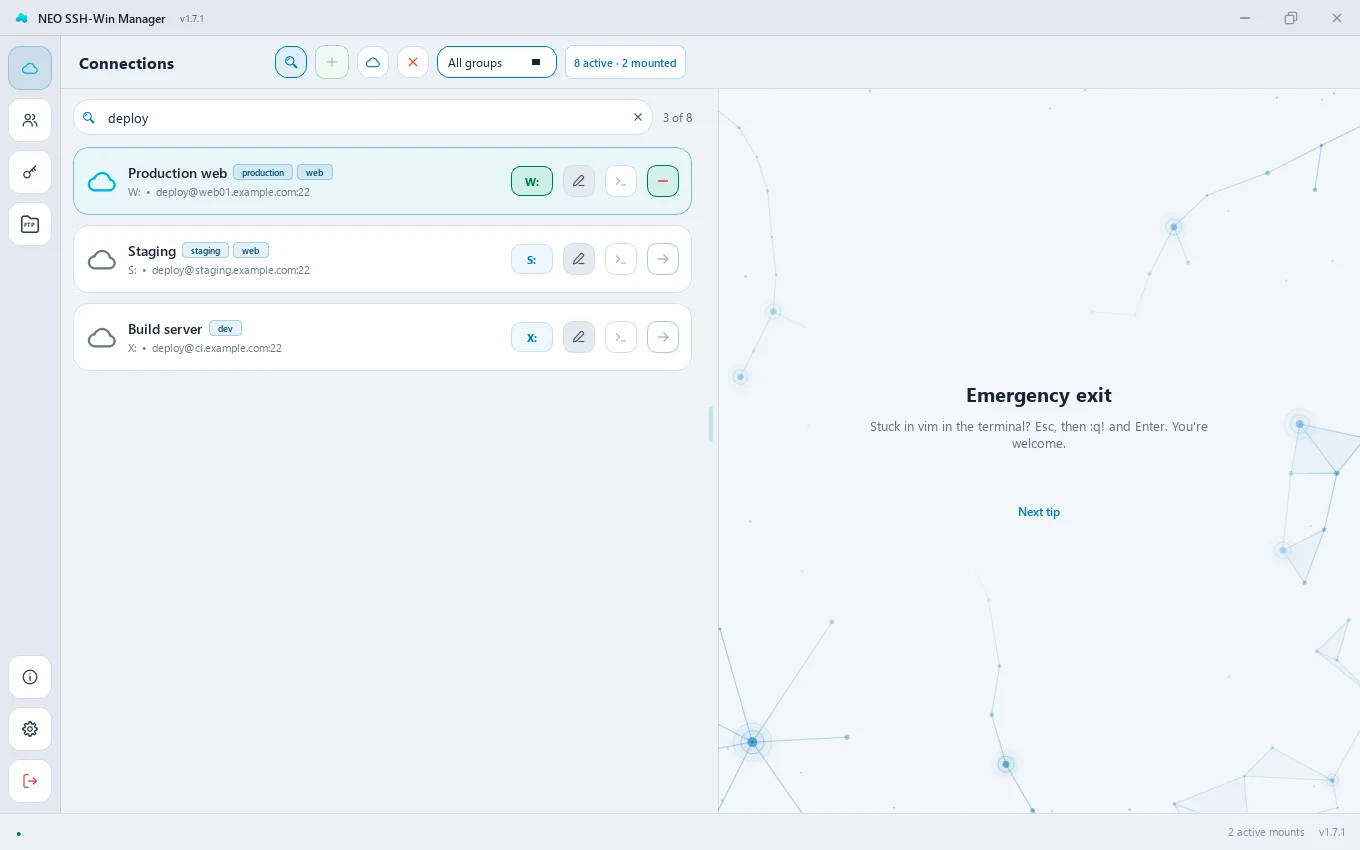
Click the magnifier (or Ctrl+F) and a filter field opens below the toolbar. From the first character on, the list shows only matching connections; beside the field it says how many (e.g. “3 of 8”) or “No matches”.
- It searches name, host, user and “user@host”, ignoring case.
- Several words narrow it down:
deploy webfinds only connections containing both. - The filter works together with the group filter.
- The text stays – even after a restart – until you change it or clear it with the × in the field. A second click on the magnifier or Esc closes the field only while it is empty.
Connection cards
Every connection is a card with its name, groups and user@host:port. The buttons on the right:
| Button | Function |
|---|---|
| Drive letter | Shows the letter. While mounted, a click opens the drive in Explorer. A warning sign means the letter is assigned to several hosts. |
| Pencil | Edit. For mounted hosts the connection fields are locked. |
| >_ | Open a terminal – integrated, Windows OpenSSH or PuTTY, depending on the setting. |
| Arrow / minus | Mount or unmount. |
| Protocol + folder (FTP/FTPS) | Opens the file browser. |
Clicking a card shows its details on the right. A right-click opens the context menu: connect/disconnect, open in Windows Explorer, open SFTP browser, connect SSH, “SSH open with” (OpenSSH, PuTTY or integrated), edit and delete.
A connection's details
At the top are the status (Connected/Disconnected) and two folder buttons: the first opens the drive in Explorer (for an unmounted SFTP host it mounts it first), the second the file browser. Below are all the connection's values. In the header: i for the system info, edit, terminal, mount/unmount and close. With CLI access enabled, there is also the CLI history.
System info
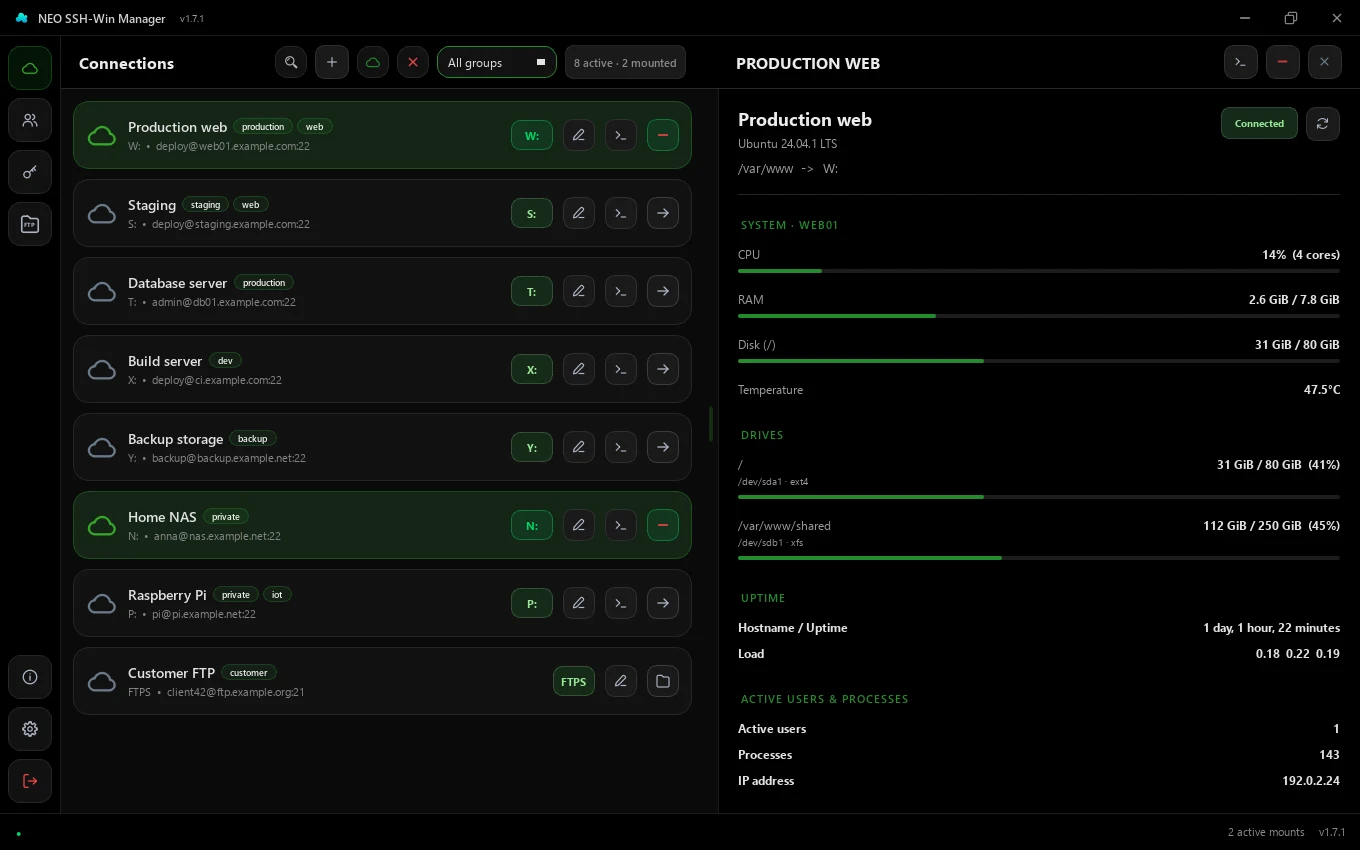
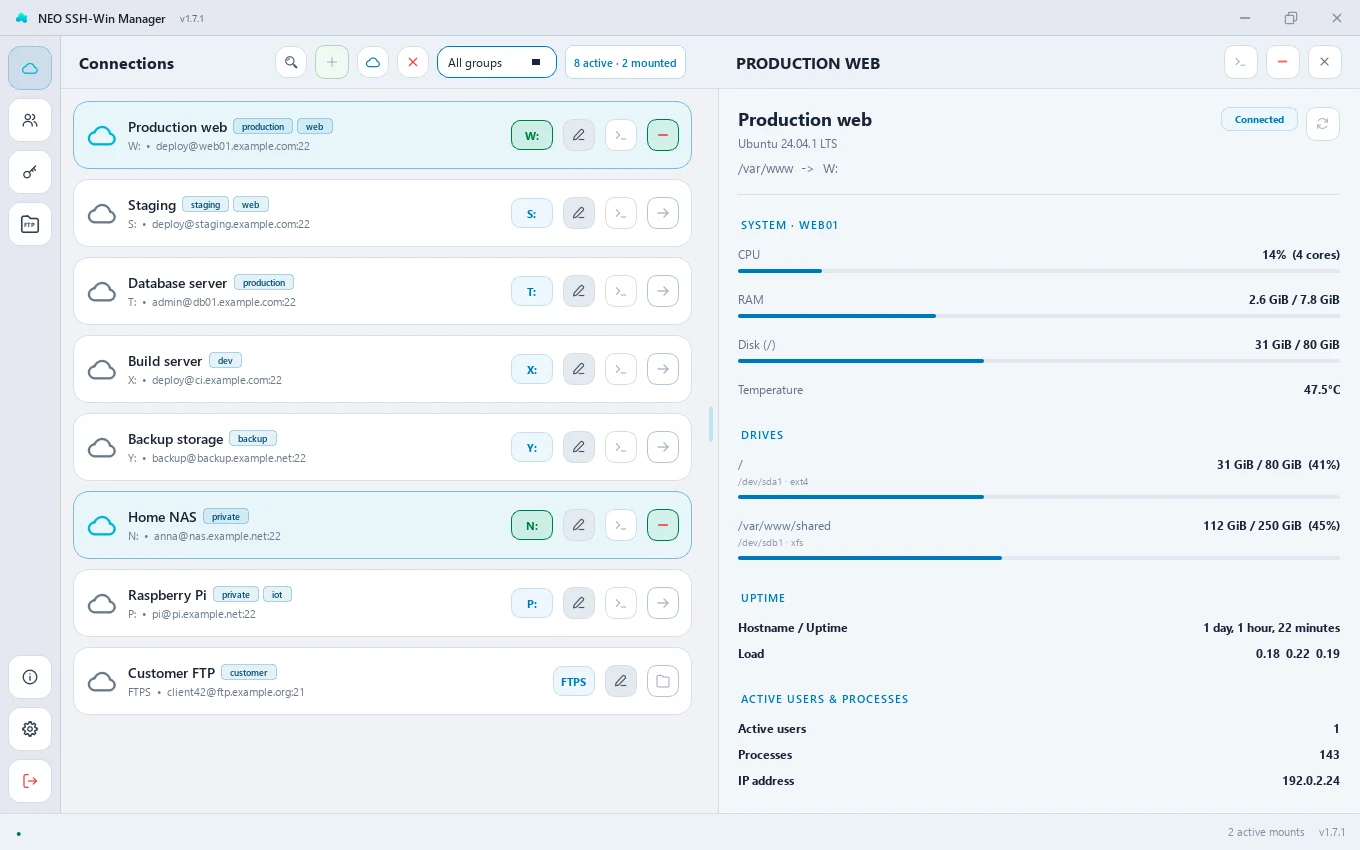
Shows live over SSH: operating system, CPU load and cores, RAM, disk, temperature (where available), all of the server's drives, uptime, load, active users, processes and IP address. Works with Linux and Windows servers (OpenSSH). The circular arrow refreshes the values. The connection needs a stored password or key for this.
Integrated terminal
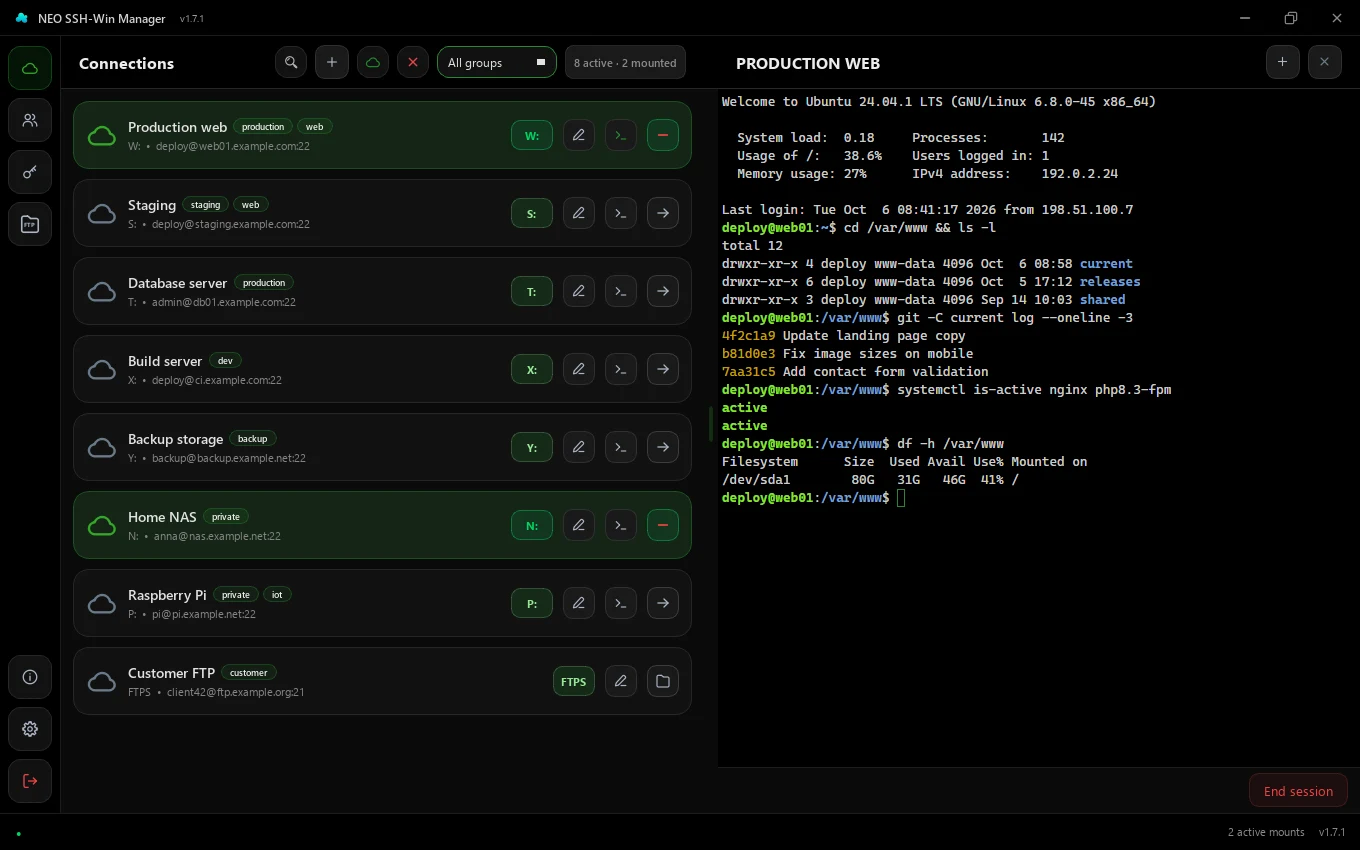
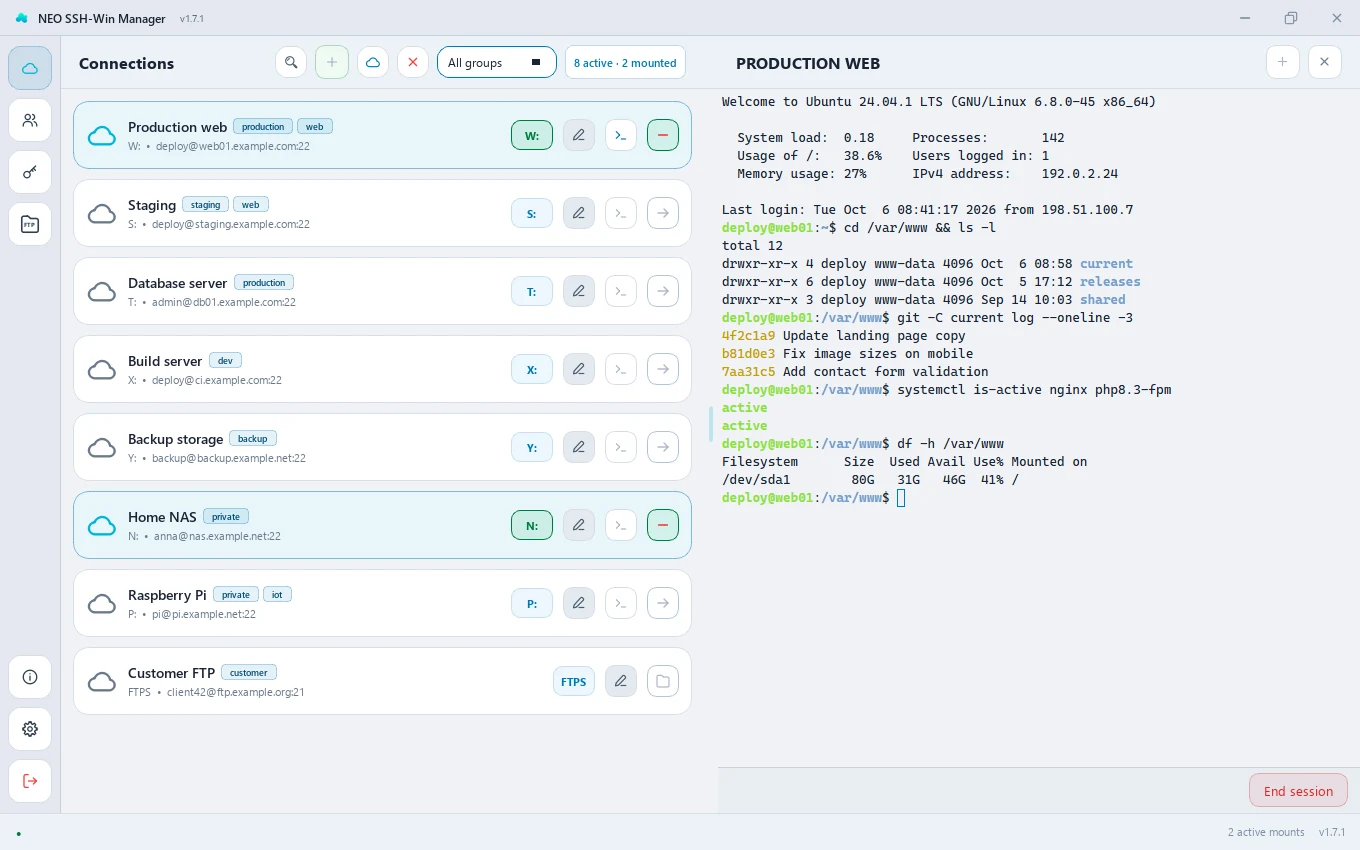
The >_ button opens an SSH session. With the integrated terminal (default) it runs right in the window; + in the header opens more sessions as tabs, End session closes the current one. Alternatively the app starts Windows OpenSSH (ssh.exe) or PuTTY in a window of its own – see SSH terminal client.
On first contact with a server the app shows its key fingerprint and asks whether you trust it. After that it is in your known_hosts file and the question does not come back – unless the key changes.
File browser
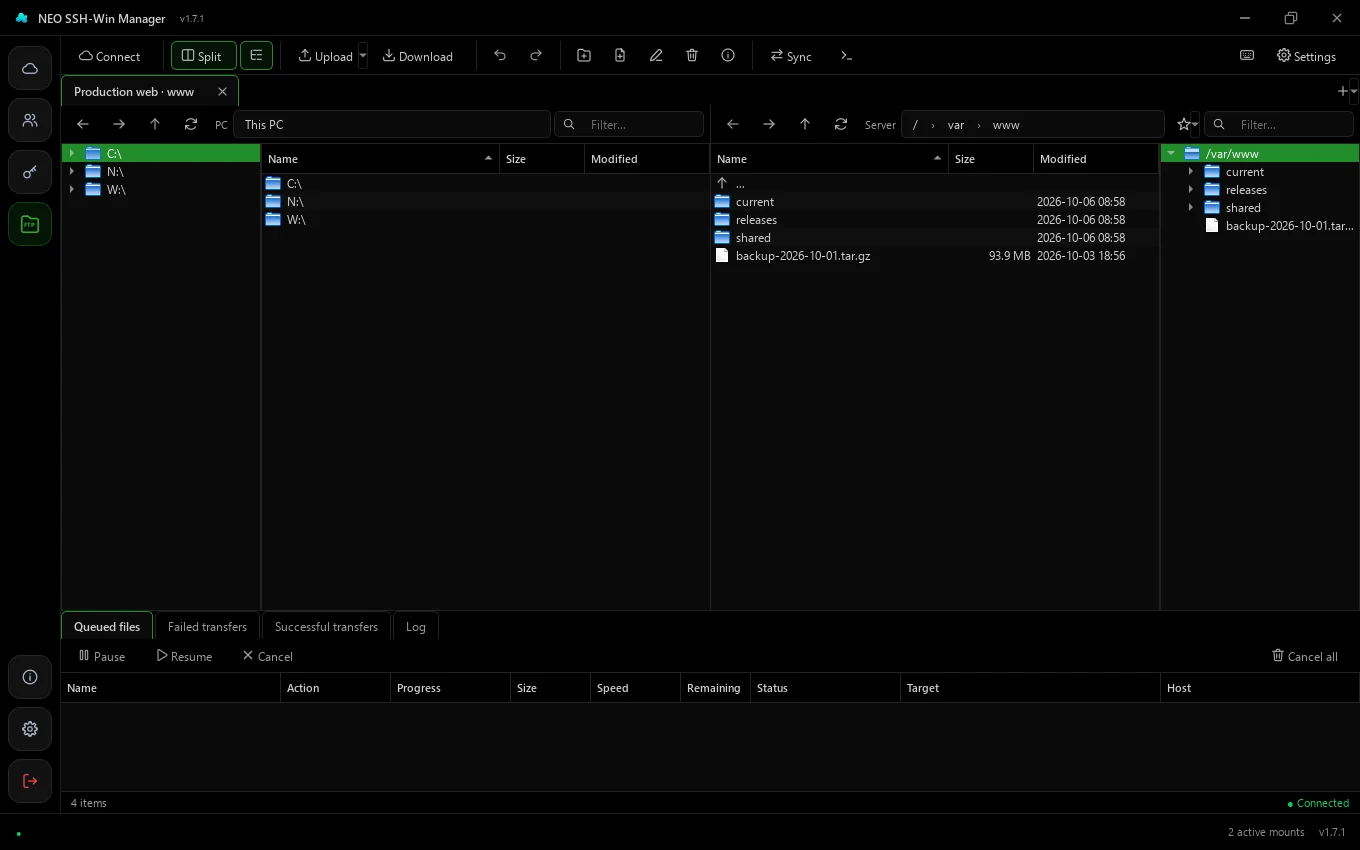
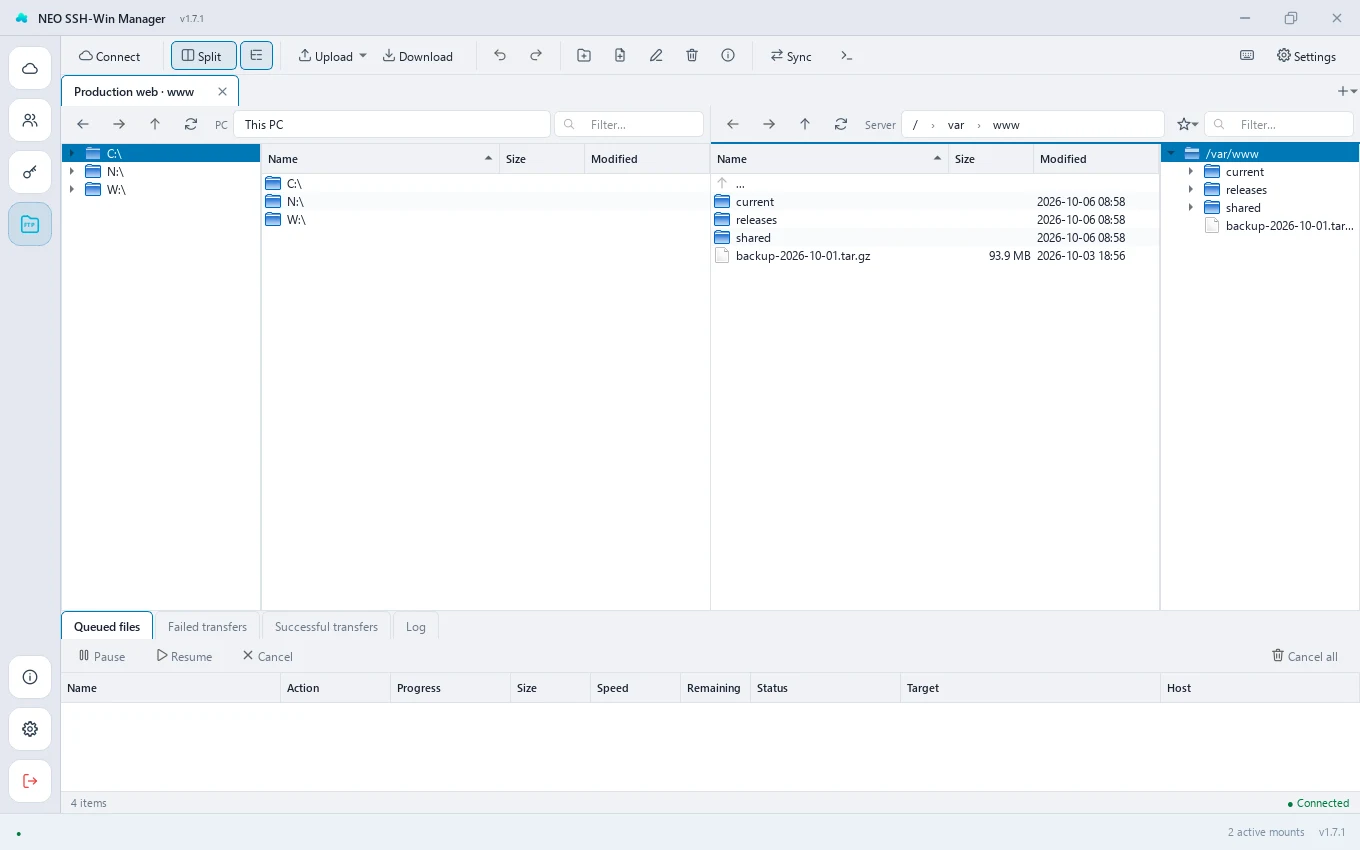
The file browser works without a drive – directly over SFTP, FTPS or FTP. Every host gets a tab of its own (Connect opens more). The main features:
- Split (F9): this PC on the left, the server on the right – move files by drag & drop or F6.
- Upload: files, folders, a folder as an archive (fast for many small files) or fetch from a URL; Download, also as an archive.
- Transfer list at the bottom with pause, resume and cancel; interrupted transfers resume.
- Undo/redo for moving, renaming and creating (Ctrl+Z / Ctrl+Y).
- Sync synchronizes folders; conflicts are shown with a file comparison.
- Edit files in your own programs (“Open with…”) – changes go back to the server.
- Pack and extract archives on the server, SHA-256 checksum, properties and permissions.
- Bookmarks (star, Ctrl+D), filter (Ctrl+F), type a path (Ctrl+L), terminal in the current folder (Ctrl+Shift+T).
F1 in the file browser lists all keyboard shortcuts.
Notification area (tray)
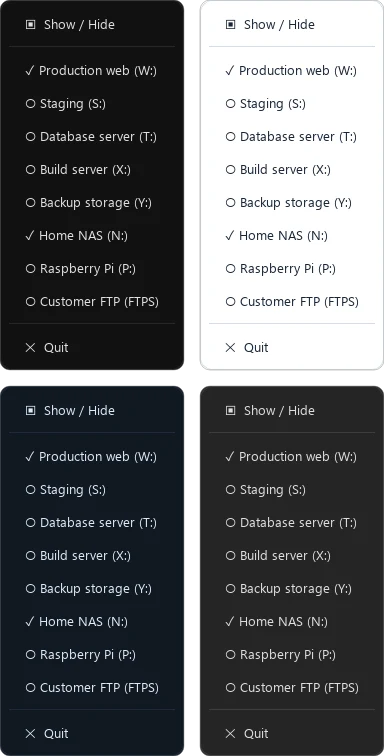
The notification-area icon has a menu with all connections: one click mounts or unmounts them without opening the window. Double-clicking the icon shows or hides the window. With Minimize to system tray on close on, the app keeps running there after you close it.
Themes
Four themes are available: Black (a classic dark mode), Blue (classic), Gray and Light. On top come an accent colour of your own and the text colour on it. You set all of this in the settings; the pictures on this page show Black at the top left and Gray at the bottom right with the accent colour #228c2b.
Keyboard shortcuts in the main window
| Key | Function |
|---|---|
| Strg+F | Filter connections |
| Strg+N | New connection |
| Strg+E | Edit the selected connection |
| Strg+S | Save the form |
| Esc | Discard the form or close the right area |
| Entf | Delete the selected connection (asks first) |